


Theme Inspector vs Performance Tab: Debugging Shopify the Right Way
Most developers use only Chrome Performance tab. Shopify Theme Inspector reveals Liquid render time per section. Here is how WitsCode combines both tools when a page is mysteriously slow.
A storefront is slow. The Lighthouse report is red. A developer opens the Chrome Performance tab, records a reload, and stares at a wall of yellow scripting bars and a fat grey block labelled as the initial document request. After an hour of squinting at Long Tasks, they recommend deferring a script, shipping the change, and watching the needle barely move. The real culprit was never visible in that panel, because half of the problem happened on Shopify's render tier before the browser ever saw a byte.
This is the failure mode that the Shopify Theme Inspector exists to fix. The Chrome Performance tab is a fine tool for what it does, but on a Shopify storefront it only sees the client side of the story. The Theme Inspector sees the server side, specifically the Liquid template render pass, and it is the only practical way to find out which snippet, section, or nested render is burning server time. Used together, the two tools form a complete picture. Used alone, either one will send you chasing ghosts.
What the Theme Inspector actually measures
The Shopify Theme Inspector is a free Chrome extension maintained by Shopify that attaches to any storefront you are logged into as staff or a development collaborator. When you open DevTools on a theme page, a Profile tab appears, or you trigger a profile through the extension icon, and Shopify returns not just the rendered HTML but a flame graph of every Liquid operation that produced it. The root of the graph shows total Liquid render milliseconds. Every child is a section, a snippet, or a render call, with its own duration, and you can drill down into nested calls until you reach the individual Liquid tag that spent time.
This matters because Liquid is not instant. A theme that looks clean in the editor can be doing heavy lifting behind the scenes. A product card inside a collection grid might call a snippet for price formatting, another for swatches, another for badges, and each of those might read product metafields, which are themselves fetched lazily. Multiply that by forty products on a listing page and a ten millisecond snippet becomes a four hundred millisecond page. The Theme Inspector shows this multiplication directly, with repeated renders collapsed into a single node whose self time tells you how bad the loop really is.
The key detail most tutorials miss is the nested render view. A flame graph is only useful if you read it as a tree rather than a list. When you expand a section node, you see the snippets it renders. Expand a snippet, and you see the snippets it renders. The hottest node in the tree is almost never at the top. It is three or four levels down, inside a loop, inside a conditional, inside a helper that someone added two themes ago and nobody has audited since. That is the node you fix, and that is the node that no Lighthouse report and no Chrome Performance recording will ever name for you.
What the Chrome Performance tab actually measures
The Chrome Performance tab is a general purpose browser profiler. It records what the main thread does from the moment the user hits enter to the moment the page settles. That includes network requests, HTML parsing, stylesheet parsing, JavaScript execution, layout, paint, and composition. It flags Long Tasks, any script block that runs for more than fifty milliseconds and therefore blocks user input. It shows the LCP candidate, CLS contributors, and the full network waterfall with timing breakdowns for DNS, connection, and download.
What it cannot do is look inside the server. The document request appears as a single bar whose duration is Time To First Byte. Everything that happened on Shopify between the request arriving and the response leaving is an opaque grey. The Performance tab will tell you that TTFB was one point four seconds. It will not tell you whether that time was spent rendering a bloated product card loop, waiting on a misconfigured app proxy, or queuing behind a cold cache. It simply reports the number and moves on.
This is fine when the problem is client side. If the HTML arrives in two hundred milliseconds and then a review widget spends eight hundred milliseconds hydrating on the main thread, the Performance tab will show you exactly that, and the Theme Inspector will have nothing useful to add. The skill is knowing which tool owns which side of the byte boundary.
The correlation between Inspector milliseconds and TTFB
Here is the relationship that almost no public article spells out. The Theme Inspector reports Liquid render time. The DevTools Network waterfall reports Time To First Byte. These two numbers are related but not equal, and the gap between them is diagnostic.
Liquid render time is a subset of the work Shopify does to produce a response. Shopify's render tier also handles routing, controller logic, database reads for the cart and customer, app proxy calls for embedded apps, and any server side work that is not a template tag. Above that sits the network: TLS negotiation, request queuing, and the byte transit back to the browser. Taken together, the relationship is: Inspector milliseconds less than or equal to TTFB less than or equal to Inspector milliseconds plus Shopify infrastructure overhead.
In practice this means three diagnostic cases. If the Inspector reports two hundred milliseconds and TTFB is two hundred and fifty, your Liquid is fine and infra is fine. If the Inspector reports two hundred milliseconds and TTFB is one thousand four hundred, your Liquid is fine but something else in the request path is slow, most likely a cache miss, a heavy app, or a request queueing behind a warming server. And if the Inspector reports one thousand one hundred milliseconds and TTFB is one thousand three hundred, the Liquid is the bottleneck and no amount of JavaScript defer tags will help the page feel fast.
You can cross reference this with the Server-Timing response header that Shopify attaches to storefront responses. The processing duration field captures controller and Liquid time on the render tier. When processing is close to TTFB, optimization effort belongs in the theme. When processing is a small fraction of TTFB, the remainder is queueing, CDN negotiation, or app proxy work, and you should not be editing snippets.
The combined workflow on a mysteriously slow page
When a WitsCode engineer gets a ticket that says a page feels slow and no one can explain why, the playbook runs the tools in a specific order because each one answers a different question.
The first step is to reproduce with fresh credentials in an incognito window so that there is no browser cache, no logged in session cart, and no editor preview state contaminating the measurement. A cached response from the Shopify edge will mask render time entirely; you will see ten millisecond TTFBs and assume the site is fine when a non cached customer is waiting seconds.
With the Theme Inspector enabled, reload the page and read the root Liquid render time from the flame graph. This is the server side budget. Open the Network panel in the same DevTools window and read TTFB on the document request. Compare the two. The gap tells you where to look next.
If the Liquid time is the dominant share of TTFB, stay in the Inspector. Expand the flame graph and find the hottest node. Almost always it is a render call inside a loop, and the fix is either caching the loop output in a snippet, moving metafield access out of the loop, or replacing a helper with a lighter one. Ship the fix, reload, and watch the root number drop. If the Liquid time is small and TTFB is large, close the Inspector and open the Server-Timing header in the Network panel response. The processing field will tell you whether the render tier is still at fault or whether the delay is upstream. If processing is small, the issue is app proxy, third party middleware, or a Shopify edge cache miss, and the fix is an app audit rather than a theme edit.
Once TTFB is under control, switch to the Performance tab and record a fresh reload. Now the document bar is short and the interesting work is on the client. Look for Long Tasks, identify the scripts that own them, and check whether they are first party or third party. Look at the LCP marker and confirm that the element it points to is the intended hero. Look at CLS contributors and identify which injected content is shifting layout. This is the aftermath phase, and it is where the Performance tab earns its keep. Ignoring it means shipping a fast server that still feels janky; running it before fixing TTFB means optimizing a client that is waiting on a slow server, which is wasted effort.
Why this matters more than Lighthouse
Lighthouse is a convenient scorecard and a reasonable starting point for conversations with clients, but it is not a debugging tool. It reports metrics and opportunities without telling you which line of code caused them. Its TTFB field is a single number with no breakdown. Its JavaScript opportunities are generic: unused code, render blocking resources, excessive main thread work. These tell you what is wrong but not why, and on a Shopify storefront the why lives behind the first byte.
An engineer who runs Lighthouse, reads the opportunities, and starts deferring scripts is treating symptoms. An engineer who runs the Theme Inspector alongside the Performance tab is reading the cause. The difference shows up in the fix. Symptom treatment produces a one or two point Lighthouse bump and a client who quietly stops replying. Cause diagnosis produces a TTFB that drops from fourteen hundred to three hundred milliseconds, a storefront that feels responsive on real devices, and a conversion rate improvement that survives the next app install.
Common findings that only the Inspector reveals
There are a handful of patterns that the Theme Inspector surfaces repeatedly and that no other tool will catch without it. Metafield access inside collection loops is the first. A product card that reads six metafields, multiplied across forty products, becomes two hundred and forty fetches serialized inside a single Liquid render, and the flame graph shows it as a forest of identical child nodes with large cumulative time.
The second is app block injection into unexpected templates. A reviews app might inject a snippet into every product card rather than only the product page, and the Inspector will show the snippet burning time on collection pages where it was never meant to render. The third is deeply nested renders where a wrapper snippet calls a variant snippet which calls a price snippet which calls a currency snippet, each adding a few milliseconds that compound across a page.
None of these are visible in the Performance tab. None of them appear in Lighthouse. All of them will be silently inflating your TTFB until someone opens the Inspector.
When each tool is the wrong choice
The Theme Inspector is useless on fully cached pages, because Shopify returns the cached HTML without re rendering Liquid. If the flame graph is suspiciously fast, check whether you are hitting the edge cache and force a miss by appending a dummy query parameter or logging in as staff. The Inspector is also the wrong tool for client side problems. A slow hydration of a third party app will not show up there at all, because it happens after the response has left the server.
The Performance tab is the wrong tool for diagnosing server side slowness. If you spend an afternoon in it trying to understand why TTFB is bad, you will end up blaming scripts that had nothing to do with the issue. And Lighthouse is the wrong tool for any real debugging work. It is a dashboard, not a microscope.
How WitsCode uses this in engagements
A Shopify performance debug from WitsCode starts with a paired recording. Theme Inspector open, Performance tab open, Server-Timing header parsed, Lighthouse run for context. The engineer annotates the flame graph with the hottest nodes, overlays them against TTFB, and produces a report that names the specific Liquid snippets, app blocks, or infrastructure conditions causing the slowdown. The fix ships behind a test, the measurement repeats, and the numbers move on real devices, not just in a synthetic lab test.
If your storefront has a mysterious slowness that nobody has been able to pin down, the cause is almost always legible in the tools above; it just requires running the right one at the right time. That is the engagement. Reach out to WitsCode with a URL and a screen recording of the problem, and we will tell you within a reading whether the fault is in your Liquid, your infrastructure, or your client JavaScript, and then we will fix it.
Building or fixing a Shopify store?
Tell us what you are working with. You get a scoped plan and a straight answer on whether you need a rebuild or just a fix.
- New builds, replatforms, and migrations
- Speed, checkout, and conversion fixes
- Scoped estimate within 48 hours
Want to discuss ecom for your business?
Start a project and we'll talk through where you are, what's working, and the highest-leverage moves for the next 90 days.
Keep reading
More from the Ecom archive.
- Ecom
July 27, 2026
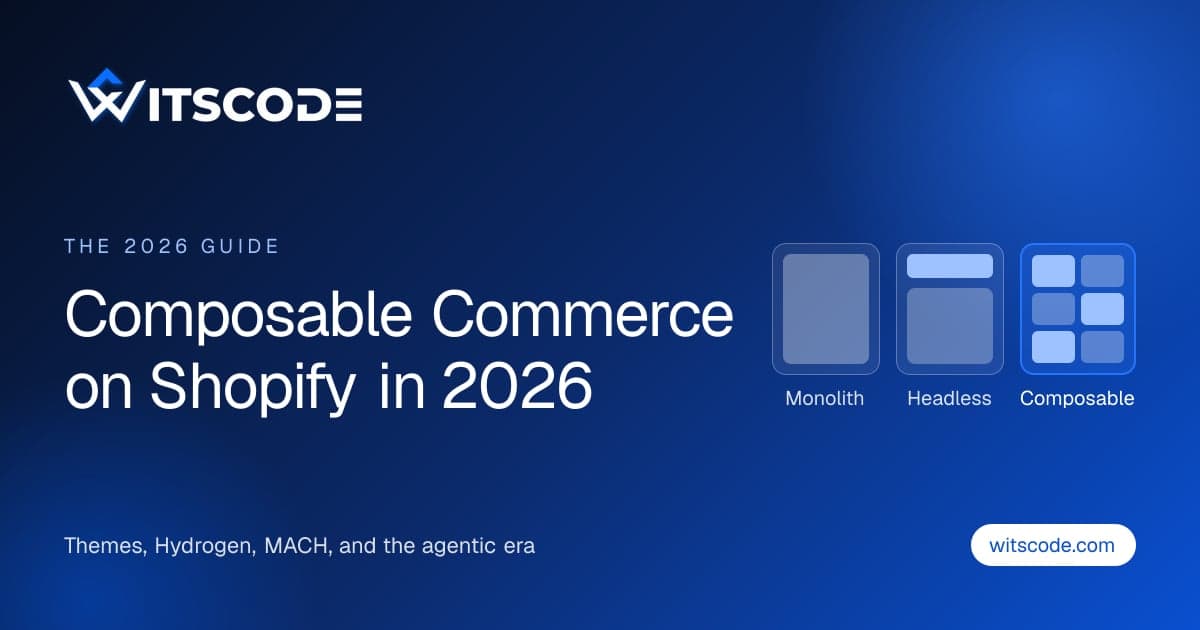
Composable Commerce on Shopify in 2026: Architecture, Real Costs, and the Agentic Shift
What composable commerce really costs on Shopify in 2026, when headless is worth it, and how the new agentic stack changes the answer. With real numbers.
- Ecom
July 19, 2026
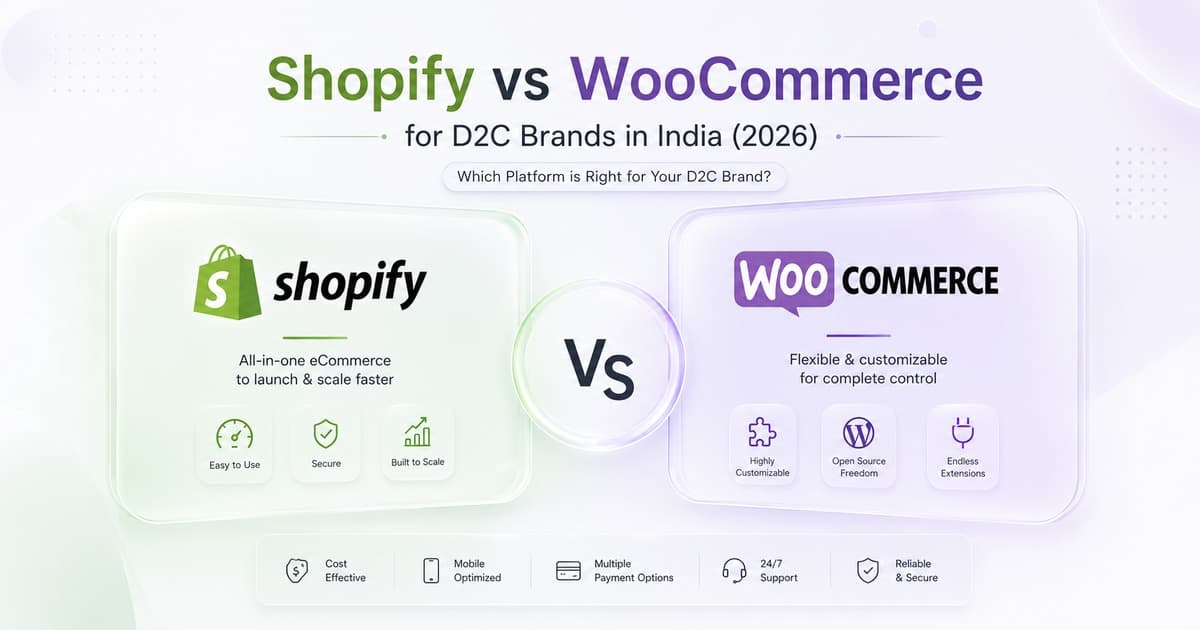
Shopify vs WooCommerce for D2C Brands in India (2026)
Shopify or WooCommerce for your Indian D2C brand in 2026? Real INR costs, the Shopify fee stack, COD, GST, and Shiprocket compared, with an honest verdict.
- Ecom

June 9, 2026
Best Shopify Development Agencies in 2026 (UK and US)
Seven Shopify development companies compared for UK and US brands. Written by one of the seven, and we name where each competitor beats us.